

Quotes Overview
Quotes are how you present pricing to your customers. Cortado helps you create accurate quotes quickly by pulling in details from the inquiry and applying your quote templates automatically.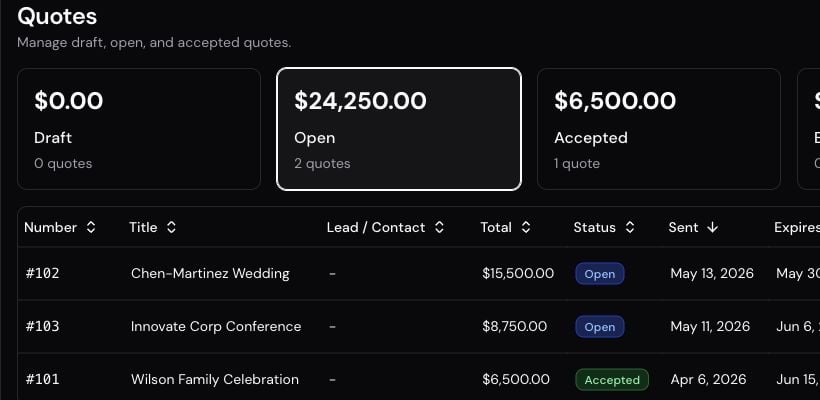
Creating a Quote
To create a new quote from an inquiry:- Open the inquiry from your Leads Pipeline
- Click Create Quote
- The quote builder opens with pre-filled line items and event details
- Review, adjust, and send
What Gets Pre-Filled
When you create a quote, Cortado automatically populates it with:- Saved template by name — quote templates now have titles, so you can pick a saved template by name and it seeds the quote’s title, description, line items, and event groups in one click. See the Quote Templates guide for the full setup.
- Template items — if you have a quote template for the inquiry’s event type, it generates line items with calculated quantities based on event length, barista count, and cart count
- Customer-selected add-ons — items the customer chose on your inquiry form
- Auto-include items — catalog items you’ve marked as “Always Include”
- Event details — dates, times, locations, guest counts, and staffing from the inquiry
- Requires questionnaire — copied from the lead. When it’s on, accepting this quote attaches your current booking questions. You can turn it off on the quote without creating a revision.
You have full control over the pre-filled quote. Add, remove, or modify any line item before sending.
Per-Event Breakdown
For inquiries with multiple events, the quote generates a separate set of line items for each event. This ensures accurate pricing — a 6-hour event with 3 baristas gets different quantities than a 2-hour event with 1 barista. Line items are grouped by event so you can easily see the cost breakdown per date.Quote Builder Layout
The quote builder is organized as three always-visible cards — Quote Details, Line Items, and Payment Schedule — so you can jump straight to whatever you need to edit instead of stepping through a wizard. On Quote Details, Requires questionnaire asks the customer to complete the questionnaire when this quote is accepted. New quotes inherit the lead’s setting. Changing the switch later is saved as metadata — it does not spawn a revision. See Booking Questionnaires.Summary and Preview
A panel alongside the cards stays with you as you work, with two tabs:- Summary (the default view) — the quote total, followed by a running breakdown: Subtotal, Discount (when one’s applied), Sales tax (when applicable), Enforced tip (when applicable), and the payment schedule
- Preview — mirrors what the customer will see on the portal, updating live as you edit line items and details. Each item shows the same quantity × unit price / unit line the portal uses (for example,
2 × $1,215.00 / Per Event), plus any per-line tax. Optional add-ons use that same unit line with the portal’s Add / Remove treatment, so you can check extras the way the customer will.
Before You Send
A Before you send checklist on the summary panel flags a few things worth double-checking before a quote goes out: whether a title has been added, whether line items or events are missing, and whether the payment schedule covers the total. It also confirms Stripe is connected — that’s the one item that actually blocks sending, so the Send button stays disabled until payments are connected. The other checklist items are reminders, not blockers, so you can still send a quote that’s missing a title if that’s intentional.Quote Events vs Lead Events
A quote keeps its own copy of event dates, times, locations, guest counts, and staffing. Those details may be copied from the lead when you create the quote, but they do not stay linked afterward.- On the lead — if a draft, sent, viewed, or revised quote already exists, the Events card warns you that editing the lead will not update the quote. If the quote is accepted, the warning tells you to edit the booked event instead.
- On the quote — the events section explains that whatever is on the quote when the customer accepts becomes the real events.
- Replace with Lead Events — copies the lead’s current events onto the quote. If the quote already has events, Cortado asks you to confirm before replacing them. This cannot be undone.
Quotes Table
The dedicated Quotes page lists every quote in your organization. The table includes an Event Date column so you can scan upcoming work instead of when a quote was published.- A single-date quote shows that event’s date.
- A multi-event quote shows the first date, plus a control to reveal the rest.
- Quotes with no event date yet show a dash.
- The list sorts by event date by default (soonest first).
Line Items
Each line item on a quote has:- Item name — from your catalog, or a custom name for one-off charges
- Quantity — can be whole numbers or decimals (e.g., 2.5 hours)
- Unit price — defaults to the catalog price, but you can override it
- Unit — per event, per hour, per day, or per unit
- Tax — optional per-item tax rate
Catalog vs Custom Items
- Catalog items — select from your catalog. Price, name, and unit are pre-filled but editable.
- Custom items — type in a name, price, and quantity for one-off charges that aren’t in your catalog.
Transportation Line Items
If you’ve set up Transportation pricing in your catalog (see the Catalog guide), adding it to a quote automatically calculates the driving distance from your business address to the event location and prices it at your per-mile rate — no manual math required. If the event doesn’t have a location yet, add one first; Cortado can’t calculate mileage without it. You can always adjust the calculated mileage by hand on the line item afterward if the automatic distance needs a correction.Optional Add-ons
The quote builder includes an Optional Add-ons section. These are extras the customer can opt into on the portal before they accept — they are not the same as inquiry-form add-ons, which are already selected when the lead comes in. You can add offers in two ways:- Add Add-on — pick a catalog item flagged as Offer as add-on on quotes under Settings > Services. Name, price, unit, and a default quantity are filled in from the catalog (you can still edit them).
- Add Custom Add-on — type a one-off name, price, unit, quantity, and optional description without adding the item to your catalog first. Custom offers default to Per Event if you don’t pick a unit.
A custom add-on needs a name and a price before you can save it. Catalog items that aren’t flagged as quote add-ons don’t appear in the Add Add-on picker.
Tax and Discounts
Sales Tax
Apply tax on a per-item basis. Set up your tax rates in Settings > Services, then select the applicable rate for each taxable line item.Discounts
Apply a percentage or flat dollar discount to the entire quote. Discounts appear as a separate line on the customer’s quote.Tips
Configure an enforced tip percentage or let customers add their own tip when paying.Sending Quotes
Once your quote is ready:- Review the total and all line items
- Check the Valid Until date (see Quote Validity — new quotes start with an automatic date you can still change)
- Click Send
Quote Validity
Every new quote starts with a Valid Until date so customers know when the offer expires.- Set the default number of days (1–90) under Settings > Services > Quote Templates, in the Quote Defaults card. If you haven’t chosen a default, Cortado uses 7 days.
- When the quote has event dates, Cortado caps Valid Until to the day before the earliest event if that comes sooner — so a customer isn’t asked to accept after the event has already started.
- If the event is today or already in the past, Valid Until stays on today rather than going backwards.
- You can still override Valid Until on any individual quote before you send.
- An accepted quote never shows as expired in the portal, even after that date. Customers see View Booking & Pay instead.
Sending from the quote builder
A Send Quote button now lives directly in the quote builder, so you don’t have to leave the page to get a quote out the door.- Draft quotes show a Send Quote button — one click emails it to the customer and moves the quote out of draft state.
- Already-sent quotes show Resend Quote with a confirmation prompt, so you can re-deliver the same revision without accidentally double-sending.
Quote Revisions
Every time you edit a sent quote, Cortado creates a new revision. This preserves the history of what was sent and when. The customer always sees the latest revision. Revisions are useful when:- A customer requests changes to the pricing
- You need to add or remove services after sending
- Event details change (more guests, longer hours, etc.)
Draft warning
When a lead has any quote still in Draft, a warning badge appears on the Lead Quotes card reminding you that drafts are not visible to the customer in the portal. Send the quote (or delete the draft) to clear the warning.Quote Duplication
Duplicating a quote — from either the Lead Quotes card or the quote detail page — copies its line items, payment schedules, discount, enforced tip, and the calendar event details. This is the fastest way to spin up a revision or a similar quote for a different date. Common uses:- A repeat customer wants the same package on a new date — duplicate, change the date, send.
- You’re presenting two pricing options for the same lead — duplicate the first, tweak the second.
- A long quote needs a small tweak that you don’t want to risk on the live version — duplicate, edit the copy, then delete or send.
Sharing and Link Lifetimes
There are two ways a customer ends up on a quote portal link, and each has its own lifetime:- Email send from Cortado — the most common path. The link in the email is tied to that recipient and expires after 7 days. Engagement (opens, clicks, accept) is tracked per-recipient.
- Copy link from the quote — for sharing in chat, text, or another channel. These direct portal links stay valid for 30 days.
- Multi-recipient share tracking — when a customer forwards an email link to a colleague, the forwarded recipient is tracked separately. You can see every recipient’s view history on the lead detail page.
Expired link recovery
When a customer opens an expired link in the portal, they see a “Need a new link?” card and can request a fresh one with one click. The new link is emailed to the original recipient and throttled to once every 5 minutes so the link can’t be abused. This means lost or stale links rarely need your intervention.Quote Acceptance
When a customer accepts a quote through the portal:- Events are created automatically from the quote’s event details — not from whatever is currently on the lead
- Barista counts, cart counts, and other staffing details carry over
- An invoice is generated from the accepted quote
- If Requires questionnaire is on, Cortado copies your current default and event-type questions onto the booking
- The lead shows as Booked in your pipeline — other quotes on that lead can no longer be accepted
Public and anonymous view tracking
When a quote link is opened — either by the named recipient or by an anonymous shared-link visitor — the view is recorded in the lead’s Activity tab under Quote Interactions. This gives you a full picture of who’s looking at the quote and when, even when the customer forwards the link to a partner or decision-maker. See the Activity guide for how to read the timeline.Best Practices
- Review before sending — double-check quantities and pricing, especially on multi-event quotes, and clear the Before you send checklist first
- Set a validity default, then override when needed — a 7–14 day org default covers most quotes; shorten it on last-minute events so the offer expires before the date
- Use templates — pick a saved template by name to seed title, description, line items, and event groups in one click
- Clear draft warnings promptly — drafts aren’t visible to your customer, so send or delete them once a quote is no longer a work in progress
- Duplicate instead of rebuilding — duplication copies line items, payment schedules, discount, tip, and calendar event details
- Offer add-ons on the quote — catalog extras plus one-off custom add-ons let the customer upgrade before they accept, without you rebuilding the quote
- Refresh quote events before you send — if the lead’s dates changed after the quote was created, use Replace with Lead Events so the customer accepts the right dates
- Check Preview before sending — a quick look at the Preview tab confirms the quote reads the way your customer will actually see it
Quote Templates
Set up templates to automate quote creation.
Activity
See quote views, link clicks, and recipient engagement.
Customer Portal
Understand the experience your customers see.
Leads Pipeline
Track quotes through your sales pipeline.
Pipeline
See the quote and payment status for every job in one list.
Booking Questionnaires
Control whether accepting a quote asks the customer for event details.