

Dashboard Overview
The dashboard at Home > Dashboard is your daily starting point in Cortado. It surfaces what’s happening this week, which leads are active, what’s overdue, and what your team has been up to — all in one scannable view. The layout is fixed: every card on the dashboard is built to give you a specific view of the business, and the order is the same for everyone on your team so you and your colleagues are looking at the same thing.Announcements
When the Cortado team has news to share — a new feature, a maintenance window, or a tip — it appears as an announcement on your dashboard. Announcements arrive in one of two formats:- Card — a floating card in the bottom-right corner on desktop, or a full-width banner across the top on mobile
- Modal — a centered pop-up that takes focus when you load the dashboard
Dismissed announcements don’t come back. If you missed something, ask a teammate or check the Changelog.
Operations Cards
At the top of the dashboard, four quick-stat cards show the numbers you most often need to act on. Each card is clickable and takes you straight to the relevant page.- Events this week — events scheduled in the next 7 days
- Overdue Invoices — invoices past their due date
- Open Leads — leads currently in the New or In Progress pipeline stages
- Pending Tasks — tasks across your organization that aren’t yet complete
This Week
The This Week card shows what’s on the calendar for the next 7 days. It’s your at-a-glance look at upcoming events, so you can plan staffing, logistics, and prep without opening the full calendar. For a wider or longer view, head to Events Calendar in the sidebar.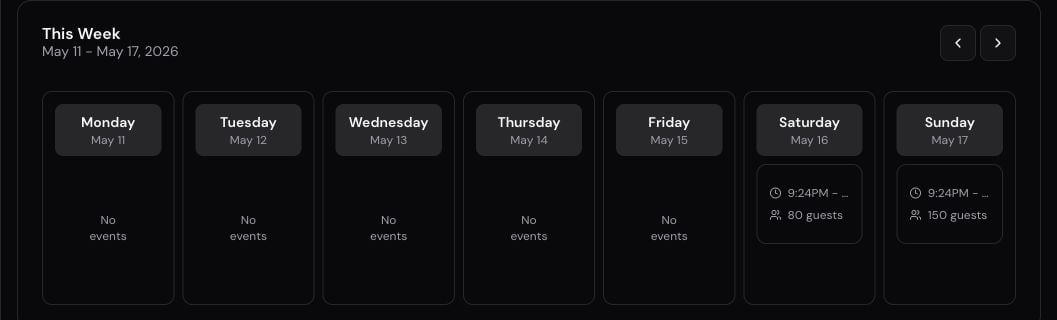
Leads
The Leads card shows current leads in the New and In Progress stages — the deals that are live and need your attention. Click any lead to open its detail page. If you want the full lead kanban with a column for every stage, go to Leads in the sidebar. See Leads Pipeline for details on how stages work. When Pipeline is enabled, Home > Pipeline is the jobs list that spans lead, quote, booking, and payment status — see Pipeline.My Tasks
The My Tasks card is a personalized view of tasks assigned to you — not your whole team’s tasks. It has two columns:- Not Started
- In Progress
Lookahead Window
A selector in the card header lets you choose how far ahead the card looks:- 7 days
- 14 days
- 30 days
Payment Schedule
The Payment Schedule card surfaces overdue invoices so collections never falls off your plate. Click an entry to jump into the invoice and follow up. For everything else around invoicing — sending, recording payments, deposits, schedules — see Invoices and Payments.Gibby
When Gibby is available for your organization, a floating orb sits in the bottom-right corner of the dashboard (and most other pages). Click it — or pressCmd+I / Ctrl+I — to search records, draft a follow-up, or pick up a previous conversation without leaving the page. See Gibby for what it can do and how questionnaires work.
Activity Feed
The Activity Feed card shows recent activity across your organization — notes added, tasks completed, quotes sent, payments recorded, and so on. It’s a quick way to see what your teammates have been doing without having to open individual records.Best Practices
- Start every morning here — five minutes on the dashboard tells you what’s overdue, what’s coming up, and where your team needs help
- Use the operations cards as triggers — if Overdue Invoices is above zero, click it before you do anything else
- Tune the My Tasks window — set it to 7 days for a tight focus, or 30 days when you’re planning a stretch of work
- Pair it with the Notification Center — the dashboard tells you the state of the business; the bell icon tells you what just happened
- Keep leads moving — the Leads card only shows New and In Progress; if a lead has stalled, advance its stage or apply a quick tag so it doesn’t get lost
- Read announcements once — they don’t come back after you dismiss them, so glance through before clicking the X
Leads Pipeline
Manage leads through the kanban pipeline from inquiry to booking.
Tasks
See the full task board with filters, statuses, and assignees.
Events Calendar
Open the full calendar of upcoming events and bookings.
Notifications
Stay on top of activity with in-app and email notifications.
Gibby
Ask the assistant to search records or draft a follow-up from any page.