

Invoices Overview
Invoices are how you bill your customers after a quote is accepted or for any event work you’re ready to collect on. Cortado’s invoice builder handles line items, sales tax, tips, and payment schedules so you can go from booked to paid without juggling spreadsheets. Invoices live under Invoices in the sidebar. The Invoices page shows open, overdue, paid, and pending totals at a glance, plus a searchable table of every invoice in your organization.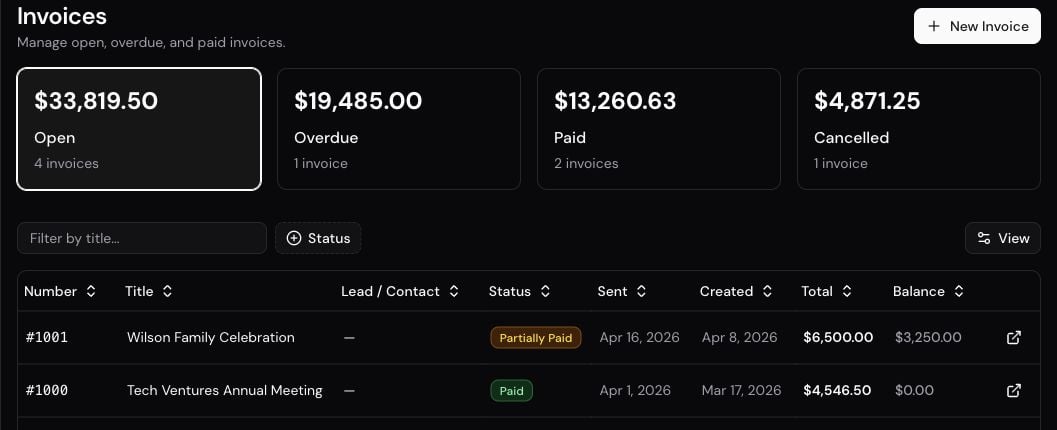
Invoices require a connected Stripe account. Connect Stripe under Settings > Integrations before you start sending.
Creating an Invoice
Most invoices are generated automatically when a customer accepts a quote. You can also create one manually when you need to bill outside the standard quote-to-booking flow. The invoice editor uses the same layout as the quote builder: three cards you can jump between, plus a side panel.- Invoice Details — title, description, discount, and optional payment-method overrides
- Line Items — catalog items or custom lines, with per-line sales tax and tip
- Payment Schedule — Full Payment, 50/50, Deposit + Remainder, or a custom schedule. On an existing invoice this section also includes payment overview and history.
- Summary — live totals for subtotal, discount, tax, tip, and the payment schedule
- Preview — exactly what the customer will see
- Before you save — flags a missing title, empty line items, or a schedule that doesn’t cover the total
Invoice Statuses
Every invoice moves through a predictable lifecycle. The status shows on the invoice summary card, the status timeline banner, and in the invoices table.Sharing and Sending
Share a Draft Invoice
Draft invoices have a Share button so you can preview the customer’s view or send a preview link before finalizing. Sharing a draft does not change its status.Send by Email
Once the invoice is ready, click Send Invoice from the quick actions panel. Cortado emails the customer a secure link to view and pay the invoice through the customer portal, and the status flips to Sent.Sending by email requires a connected Gmail account. If Gmail isn’t connected, the Send button is disabled and you’ll see a tooltip prompting you to connect it under Settings > Email.
Copy Link
Prefer to share the invoice yourself? Click Share Invoice to copy a secure portal link to your clipboard. The link uses a signed token so only the recipient can access it.Resend
For invoices that have already been sent, the Resend button in quick actions re-emails the current version to the customer — useful if they lost the original.Invoice Detail Page
Clicking an invoice opens a two-column detail view designed for scanning status and taking action quickly.Left Sidebar
- Invoice Summary Card — status, invoice number, grand total, payment progress bar, paid/due breakdown, and key dates (created, sent, next due).
- Quick Actions — context-aware buttons based on status. Draft invoices show “Send Invoice”, sent invoices show “Log Manual Payment”, and paid invoices show receipt actions. Download a payment receipt PDF from the schedule that was paid — see Payments. Additional buttons include Resend, Share, Edit, Send Reminder (overdue only), Mark as Paid, and Void Invoice. When a customer already chose a tip in the portal, Log Manual Payment includes that unpaid tip in the remaining total.
Main Content
- Status Timeline — a visual banner showing Created → Sent → Viewed → Paid with timestamps for completed steps. Cancelled invoices show a neutral cancelled banner instead.
- Line Items Card — expandable list of every line item with quantity, unit price, and totals. Includes the full breakdown of subtotal, discount, sales tax, tip, and final total.
- Payment Schedules Card — each scheduled payment with its due date, amount, progress bar, status badge (Pending, Partial, Paid, Overdue, Cancelled, Waived), a “Log Payment” button when applicable, and Download receipt once that schedule has a completed payment.
- Payment History — every Stripe and manual payment logged against the invoice, with refund and void controls.
- Activity Tabs — internal notes and tasks attached to the invoice.
Line Items
Each line item has a name, optional description, quantity, unit price, and unit (per event, per hour, per day, or per unit). You can mix catalog items and custom items on the same invoice.Sales Tax
Apply sales tax on a per-line-item basis. Choose from the tax rates configured under Settings > Payments, or use the Quick Tax Selector to apply the same rate to multiple items at once. Tax rates appear as a separate line in the totals breakdown.Discounts
Apply a percentage or flat-dollar discount from your saved discounts. The discount shows as its own line on the customer’s invoice.Gratuity
Invoices support two tip modes:- Manual tip amount — type in a dollar figure, or use the 10%/15%/20% preset buttons.
- Enforced tip percentage — set a mandatory percentage for the invoice. When a customer pays through the portal, the tip is collected automatically.
Payment Methods Override
By default, invoices use your organization’s default checkout payment methods. For a specific invoice, you can override which methods appear at checkout:- Open the invoice editor and find Payment Methods on the Invoice Details card
- Toggle Use custom payment methods on
- Check Credit Card and/or ACH / Bank Transfer
- Save
Editing and Revisions
Draft invoices can be edited freely. Once an invoice has payments recorded, line items are locked. When you edit line items on a sent (but not yet paid) invoice, Cortado prompts you for a revision reason. This reason is saved alongside the change so you have a paper trail of what was updated and why.Editing Payment Schedules
You can add, update, or remove scheduled payments on an existing invoice from the Payment Schedule card in the editor. Changes apply atomically — the schedule always balances to the invoice total. After any payment is recorded:- Paid rows stay locked — you cannot edit or remove them, or reorder the schedule
- Unpaid rows can still change — split a remaining installment, add or remove unpaid rows, and edit those amounts, as long as the schedule still adds up to the invoice total
- Descriptions and due dates stay editable on unpaid rows
- Wait if a checkout link is active or a payment is processing
Voiding an Invoice
If an invoice was created in error or a booking fell through, you can void it from the More Actions menu in quick actions. Voiding:- Cancels all associated payment schedules
- Marks the invoice as Cancelled
- Cannot be undone
Voiding When You Cancel an Event
Marking an event Cancelled from the event stage dropdown also checks the booking for open invoices. If any are still active, Cortado asks which ones to void before the stage change is applied.- Unpaid invoices are selected by default when this is the last scheduled event on the booking
- If other events on the same booking are still scheduled, nothing is pre-selected — those invoices may cover the remaining dates
- Invoices that already have payments stay unchecked and show a Has payments label
- Leave invoices unchecked to cancel the event without voiding them
- If a void fails, the event still moves to Cancelled — retry those invoices from the invoice page
Best Practices
- Review before sending — double-check line items, tax, tip, and the payment schedule total matches the invoice total.
- Use auto-generated invoices — let accepted quotes create invoices for you; manual creation is for exceptions, not the norm.
- Split payments with schedules — deposit + remainder schedules improve cash flow and reduce the risk of late-stage cancellations.
- Set per-invoice payment methods for large events — some clients prefer ACH for larger amounts to avoid card fees.
- Send reminders for overdue invoices — one click from quick actions, with an optional custom message to the customer.
- Keep notes on the invoice — record conversations, adjustments, and payment promises in the Activity tab so your team has context.
Payments
How payment schedules, refunds, and manual payments work.
Customer Portal
What customers see when you share an invoice link.
Quotes
Quotes turn into invoices automatically when accepted.
Catalog
The catalog items that feed your invoice line items.