> ## Documentation Index
> Fetch the complete documentation index at: https://docs.cortado.pro/llms.txt
> Use this file to discover all available pages before exploring further.
# Invoices
> Create, edit, send, and share invoices to collect payment from your customers
## Invoices Overview
Invoices are how you bill your customers after a quote is accepted or for any event work you're ready to collect on. Cortado's invoice builder handles line items, sales tax, tips, and payment schedules so you can go from booked to paid without juggling spreadsheets.
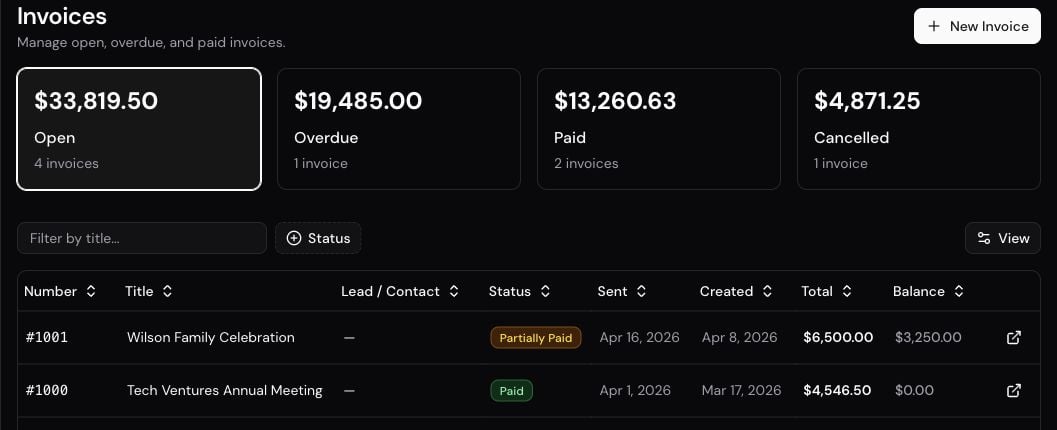
Invoices live under **Invoices** in the sidebar. The Invoices page shows open, overdue, paid, and pending totals at a glance, plus a searchable table of every invoice in your organization.
 Invoices require a connected Stripe account. Connect Stripe under **Settings > Integrations** before you start sending.
## Creating an Invoice
Most invoices are generated automatically when a customer accepts a quote. You can also create one manually when you need to bill outside the standard quote-to-booking flow.
The invoice builder walks you through four tabs:
Add a title, description, optional discount, and set payment methods.
Add services from your catalog or type in custom line items. Apply sales tax per item and set a tip amount if needed.
Choose a template (Full Payment, 50/50, Deposit + Remainder) or build a custom schedule. For existing invoices, this tab is **Payments** and includes payment history.
Confirm totals, verify the schedule balances to the invoice total, then create or save.
When you create a new invoice, any catalog items marked as **Always Include** are added automatically.
## Invoice Statuses
Every invoice moves through a predictable lifecycle. The status shows on the invoice summary card, the status timeline banner, and in the invoices table.
| Status | What it means |
| ------------------- | ---------------------------------------------------------- |
| **Draft** | Not yet sent. Edit freely. |
| **Sent** | Emailed or shared with the customer. |
| **Viewed** | The customer opened the portal link. |
| **Payment Pending** | A payment is processing (common for ACH). |
| **Partially Paid** | At least one schedule paid, balance remains. |
| **Paid** | Fully paid — displayed in green with a celebration banner. |
| **Overdue** | A scheduled payment passed its due date unpaid. |
| **Cancelled** | Voided — no longer billable. |
## Sharing and Sending
### Share a Draft Invoice
Draft invoices have a **Share** button so you can preview the customer's view or send a preview link before finalizing. Sharing a draft does not change its status.
### Send by Email
Once the invoice is ready, click **Send Invoice** from the quick actions panel. Cortado emails the customer a secure link to view and pay the invoice through the customer portal, and the status flips to Sent.
Sending by email requires a connected Gmail account. If Gmail isn't connected, the Send button is disabled and you'll see a tooltip prompting you to connect it under **Settings > Email**.
### Copy Link
Prefer to share the invoice yourself? Click **Share Invoice** to copy a secure portal link to your clipboard. The link uses a signed token so only the recipient can access it.
### Resend
For invoices that have already been sent, the **Resend** button in quick actions re-emails the current version to the customer — useful if they lost the original.
## Invoice Detail Page
Clicking an invoice opens a two-column detail view designed for scanning status and taking action quickly.
### Left Sidebar
* **Invoice Summary Card** — status, invoice number, grand total, payment progress bar, paid/due breakdown, and key dates (created, sent, next due).
* **Quick Actions** — context-aware buttons based on status. Draft invoices show "Send Invoice", sent invoices show "Log Manual Payment", and paid invoices show receipt actions. Download a **payment receipt PDF** from the schedule that was paid — see [Payments](/guides/payments#payment-receipts). Additional buttons include Resend, Share, Edit, Send Reminder (overdue only), Mark as Paid, and Void Invoice.
### Main Content
* **Status Timeline** — a visual banner showing Created → Sent → Viewed → Paid with timestamps for completed steps. Cancelled invoices show a neutral cancelled banner instead.
* **Line Items Card** — expandable list of every line item with quantity, unit price, and totals. Includes the full breakdown of subtotal, discount, sales tax, tip, and final total.
* **Payment Schedules Card** — each scheduled payment with its due date, amount, progress bar, status badge (Pending, Partial, Paid, Overdue, Cancelled, Waived), a "Log Payment" button when applicable, and **Download receipt** once that schedule has a completed payment.
* **Payment History** — every Stripe and manual payment logged against the invoice, with refund and void controls.
* **Activity Tabs** — internal notes and tasks attached to the invoice.
## Line Items
Each line item has a name, optional description, quantity, unit price, and unit (per event, per hour, per day, or per unit). You can mix catalog items and custom items on the same invoice.
### Sales Tax
Apply sales tax on a per-line-item basis. Choose from the tax rates configured under **Settings > Payments**, or use the **Quick Tax Selector** to apply the same rate to multiple items at once. Tax rates appear as a separate line in the totals breakdown.
### Discounts
Apply a percentage or flat-dollar discount from your saved discounts. The discount shows as its own line on the customer's invoice.
### Gratuity
Invoices support two tip modes:
* **Manual tip amount** — type in a dollar figure, or use the 10%/15%/20% preset buttons.
* **Enforced tip percentage** — set a mandatory percentage for the invoice. When a customer pays through the portal, the tip is collected automatically.
## Payment Methods Override
By default, invoices use your organization's default checkout payment methods. For a specific invoice, you can override which methods appear at checkout:
1. Open the invoice editor and go to the **Details** tab
2. Toggle **Use custom payment methods** on
3. Check **Credit Card** and/or **ACH / Bank Transfer**
4. Save
At least one method must remain selected. When the toggle is off, the invoice falls back to your organization defaults.
## Editing and Revisions
Draft invoices can be edited freely. Once an invoice has payments recorded, it becomes **locked** — line items and schedule amounts cannot be changed.
When you edit line items on a sent (but not yet paid) invoice, Cortado prompts you for a **revision reason**. This reason is saved alongside the change so you have a paper trail of what was updated and why.
### Editing Payment Schedules
You can add, update, or remove scheduled payments on an existing invoice from the **Payments** tab in the editor. Changes apply atomically — the schedule always balances to the invoice total.
Once any payment is recorded on an invoice, schedule amounts can no longer be changed. You can still edit descriptions and due dates on pending schedules.
## Voiding an Invoice
If an invoice was created in error or a booking fell through, you can void it from the **More Actions** menu in quick actions. Voiding:
* Cancels all associated payment schedules
* Marks the invoice as Cancelled
* Cannot be undone
If the invoice has existing payments, Cortado shows a warning before voiding. Refunds must be processed separately — voiding does not refund payments.
## Best Practices
1. **Review before sending** — double-check line items, tax, tip, and the payment schedule total matches the invoice total.
2. **Use auto-generated invoices** — let accepted quotes create invoices for you; manual creation is for exceptions, not the norm.
3. **Split payments with schedules** — deposit + remainder schedules improve cash flow and reduce the risk of late-stage cancellations.
4. **Set per-invoice payment methods for large events** — some clients prefer ACH for larger amounts to avoid card fees.
5. **Send reminders for overdue invoices** — one click from quick actions, with an optional custom message to the customer.
6. **Keep notes on the invoice** — record conversations, adjustments, and payment promises in the Activity tab so your team has context.
How payment schedules, refunds, and manual payments work.
What customers see when you share an invoice link.
Quotes turn into invoices automatically when accepted.
The catalog items that feed your invoice line items.
Invoices require a connected Stripe account. Connect Stripe under **Settings > Integrations** before you start sending.
## Creating an Invoice
Most invoices are generated automatically when a customer accepts a quote. You can also create one manually when you need to bill outside the standard quote-to-booking flow.
The invoice builder walks you through four tabs:
Add a title, description, optional discount, and set payment methods.
Add services from your catalog or type in custom line items. Apply sales tax per item and set a tip amount if needed.
Choose a template (Full Payment, 50/50, Deposit + Remainder) or build a custom schedule. For existing invoices, this tab is **Payments** and includes payment history.
Confirm totals, verify the schedule balances to the invoice total, then create or save.
When you create a new invoice, any catalog items marked as **Always Include** are added automatically.
## Invoice Statuses
Every invoice moves through a predictable lifecycle. The status shows on the invoice summary card, the status timeline banner, and in the invoices table.
| Status | What it means |
| ------------------- | ---------------------------------------------------------- |
| **Draft** | Not yet sent. Edit freely. |
| **Sent** | Emailed or shared with the customer. |
| **Viewed** | The customer opened the portal link. |
| **Payment Pending** | A payment is processing (common for ACH). |
| **Partially Paid** | At least one schedule paid, balance remains. |
| **Paid** | Fully paid — displayed in green with a celebration banner. |
| **Overdue** | A scheduled payment passed its due date unpaid. |
| **Cancelled** | Voided — no longer billable. |
## Sharing and Sending
### Share a Draft Invoice
Draft invoices have a **Share** button so you can preview the customer's view or send a preview link before finalizing. Sharing a draft does not change its status.
### Send by Email
Once the invoice is ready, click **Send Invoice** from the quick actions panel. Cortado emails the customer a secure link to view and pay the invoice through the customer portal, and the status flips to Sent.
Sending by email requires a connected Gmail account. If Gmail isn't connected, the Send button is disabled and you'll see a tooltip prompting you to connect it under **Settings > Email**.
### Copy Link
Prefer to share the invoice yourself? Click **Share Invoice** to copy a secure portal link to your clipboard. The link uses a signed token so only the recipient can access it.
### Resend
For invoices that have already been sent, the **Resend** button in quick actions re-emails the current version to the customer — useful if they lost the original.
## Invoice Detail Page
Clicking an invoice opens a two-column detail view designed for scanning status and taking action quickly.
### Left Sidebar
* **Invoice Summary Card** — status, invoice number, grand total, payment progress bar, paid/due breakdown, and key dates (created, sent, next due).
* **Quick Actions** — context-aware buttons based on status. Draft invoices show "Send Invoice", sent invoices show "Log Manual Payment", and paid invoices show receipt actions. Download a **payment receipt PDF** from the schedule that was paid — see [Payments](/guides/payments#payment-receipts). Additional buttons include Resend, Share, Edit, Send Reminder (overdue only), Mark as Paid, and Void Invoice.
### Main Content
* **Status Timeline** — a visual banner showing Created → Sent → Viewed → Paid with timestamps for completed steps. Cancelled invoices show a neutral cancelled banner instead.
* **Line Items Card** — expandable list of every line item with quantity, unit price, and totals. Includes the full breakdown of subtotal, discount, sales tax, tip, and final total.
* **Payment Schedules Card** — each scheduled payment with its due date, amount, progress bar, status badge (Pending, Partial, Paid, Overdue, Cancelled, Waived), a "Log Payment" button when applicable, and **Download receipt** once that schedule has a completed payment.
* **Payment History** — every Stripe and manual payment logged against the invoice, with refund and void controls.
* **Activity Tabs** — internal notes and tasks attached to the invoice.
## Line Items
Each line item has a name, optional description, quantity, unit price, and unit (per event, per hour, per day, or per unit). You can mix catalog items and custom items on the same invoice.
### Sales Tax
Apply sales tax on a per-line-item basis. Choose from the tax rates configured under **Settings > Payments**, or use the **Quick Tax Selector** to apply the same rate to multiple items at once. Tax rates appear as a separate line in the totals breakdown.
### Discounts
Apply a percentage or flat-dollar discount from your saved discounts. The discount shows as its own line on the customer's invoice.
### Gratuity
Invoices support two tip modes:
* **Manual tip amount** — type in a dollar figure, or use the 10%/15%/20% preset buttons.
* **Enforced tip percentage** — set a mandatory percentage for the invoice. When a customer pays through the portal, the tip is collected automatically.
## Payment Methods Override
By default, invoices use your organization's default checkout payment methods. For a specific invoice, you can override which methods appear at checkout:
1. Open the invoice editor and go to the **Details** tab
2. Toggle **Use custom payment methods** on
3. Check **Credit Card** and/or **ACH / Bank Transfer**
4. Save
At least one method must remain selected. When the toggle is off, the invoice falls back to your organization defaults.
## Editing and Revisions
Draft invoices can be edited freely. Once an invoice has payments recorded, it becomes **locked** — line items and schedule amounts cannot be changed.
When you edit line items on a sent (but not yet paid) invoice, Cortado prompts you for a **revision reason**. This reason is saved alongside the change so you have a paper trail of what was updated and why.
### Editing Payment Schedules
You can add, update, or remove scheduled payments on an existing invoice from the **Payments** tab in the editor. Changes apply atomically — the schedule always balances to the invoice total.
Once any payment is recorded on an invoice, schedule amounts can no longer be changed. You can still edit descriptions and due dates on pending schedules.
## Voiding an Invoice
If an invoice was created in error or a booking fell through, you can void it from the **More Actions** menu in quick actions. Voiding:
* Cancels all associated payment schedules
* Marks the invoice as Cancelled
* Cannot be undone
If the invoice has existing payments, Cortado shows a warning before voiding. Refunds must be processed separately — voiding does not refund payments.
## Best Practices
1. **Review before sending** — double-check line items, tax, tip, and the payment schedule total matches the invoice total.
2. **Use auto-generated invoices** — let accepted quotes create invoices for you; manual creation is for exceptions, not the norm.
3. **Split payments with schedules** — deposit + remainder schedules improve cash flow and reduce the risk of late-stage cancellations.
4. **Set per-invoice payment methods for large events** — some clients prefer ACH for larger amounts to avoid card fees.
5. **Send reminders for overdue invoices** — one click from quick actions, with an optional custom message to the customer.
6. **Keep notes on the invoice** — record conversations, adjustments, and payment promises in the Activity tab so your team has context.
How payment schedules, refunds, and manual payments work.
What customers see when you share an invoice link.
Quotes turn into invoices automatically when accepted.
The catalog items that feed your invoice line items.