> ## Documentation Index
> Fetch the complete documentation index at: https://docs.cortado.pro/llms.txt
> Use this file to discover all available pages before exploring further.
# Dashboard
> Your daily home base in Cortado — the cards that surface what needs attention today
## Dashboard Overview
The dashboard at **Home > Dashboard** is your daily starting point in Cortado. It surfaces what's happening this week, which leads are active, what's overdue, and what your team has been up to — all in one scannable view.
The layout is fixed: every card on the dashboard is built to give you a specific view of the business, and the order is the same for everyone on your team so you and your colleagues are looking at the same thing.
## Announcements
When the Cortado team has news to share — a new feature, a maintenance window, or a tip — it appears as an announcement on your dashboard.
Announcements arrive in one of two formats:
* **Card** — a floating card in the bottom-right corner on desktop, or a full-width banner across the top on mobile
* **Modal** — a centered pop-up that takes focus when you load the dashboard
Each announcement includes a title, a short body, an optional image, and up to two action buttons (for example, "Learn more" or "Open settings"). Click the **X** to dismiss it. When several unread announcements are queued up, you can page through them one at a time.
Dismissed announcements don't come back. If you missed something, ask a teammate or check the [Changelog](/changelog/overview).
## Operations Cards
At the top of the dashboard, four quick-stat cards show the numbers you most often need to act on. Each card is clickable and takes you straight to the relevant page.
* **Events this week** — events scheduled in the next 7 days
* **Overdue Invoices** — invoices past their due date
* **Open Leads** — leads currently in the **New** or **In Progress** pipeline stages
* **Pending Tasks** — tasks across your organization that aren't yet complete
Treat the operations cards as your morning checklist. If any number looks higher than usual, click through to see what's piling up.
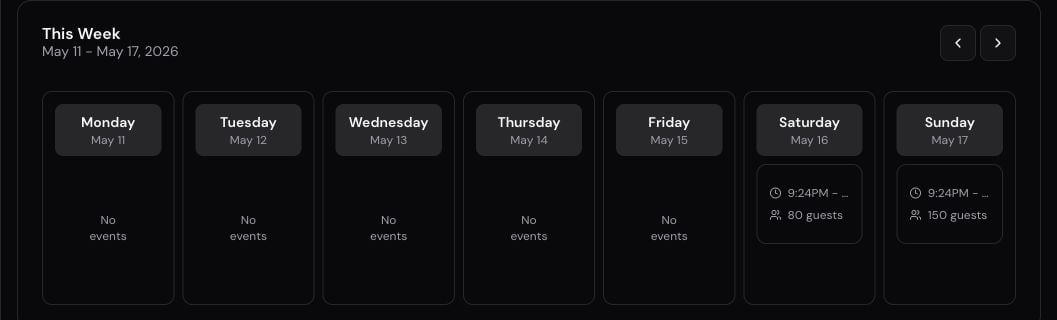
## This Week
The **This Week** card shows what's on the calendar for the next 7 days. It's your at-a-glance look at upcoming events, so you can plan staffing, logistics, and prep without opening the full calendar.
For a wider or longer view, head to **Events Calendar** in the sidebar.
 ## Leads
The **Leads** card shows current leads in the **New** and **In Progress** stages — the deals that are live and need your attention. Click any lead to open its detail page.
If you want the full pipeline view with kanban columns for every stage, go to **Leads** in the sidebar. See [Leads Pipeline](/guides/leads-pipeline) for details on how stages work.
## My Tasks
The **My Tasks** card is a personalized view of tasks **assigned to you** — not your whole team's tasks.
It has two columns:
* **Not Started**
* **In Progress**
Tasks are ordered by due date. There is no automatic priority ranking — what you see is simply what's due soonest.
### Lookahead Window
A selector in the card header lets you choose how far ahead the card looks:
* **7 days**
* **14 days**
* **30 days**
The card shows the first three tasks per column. If there are more, a **Show N more** button expands the list.
For full filtering, search, and team-wide views, open the dedicated [Tasks](/guides/tasks) page.
## Payment Schedule
The **Payment Schedule** card surfaces **overdue invoices** so collections never falls off your plate. Click an entry to jump into the invoice and follow up.
For everything else around invoicing — sending, recording payments, deposits, schedules — see [Invoices](/guides/invoices) and [Payments](/guides/payments).
## Gibby
When Gibby is available for your organization, a floating orb sits in the bottom-right corner of the dashboard (and most other pages). Click it — or press `Cmd+I` / `Ctrl+I` — to search records, draft a follow-up, or pick up a previous conversation without leaving the page. See [Gibby](/guides/gibby) for what it can do and how questionnaires work.
## Activity Feed
The **Activity Feed** card shows recent activity across your organization — notes added, tasks completed, quotes sent, payments recorded, and so on. It's a quick way to see what your teammates have been doing without having to open individual records.
The Activity Feed on the dashboard is a real-time pulse of recent team activity. For a deeper, day-by-day look at notes created and tasks completed across the organization, see the Daily Activity Summary on the [Reports](/guides/reports) page, covered in the [Activity](/guides/activity) guide.
## Best Practices
1. **Start every morning here** — five minutes on the dashboard tells you what's overdue, what's coming up, and where your team needs help
2. **Use the operations cards as triggers** — if Overdue Invoices is above zero, click it before you do anything else
3. **Tune the My Tasks window** — set it to 7 days for a tight focus, or 30 days when you're planning a stretch of work
4. **Pair it with the Notification Center** — the dashboard tells you the state of the business; the bell icon tells you what just happened
5. **Keep leads moving** — the Leads card only shows New and In Progress; if a lead has stalled, advance its stage or apply a quick tag so it doesn't get lost
6. **Read announcements once** — they don't come back after you dismiss them, so glance through before clicking the X
Manage leads through the kanban pipeline from inquiry to booking.
See the full task board with filters, statuses, and assignees.
Open the full calendar of upcoming events and bookings.
Stay on top of activity with in-app and email notifications.
Ask the assistant to search records or draft a follow-up from any page.
## Leads
The **Leads** card shows current leads in the **New** and **In Progress** stages — the deals that are live and need your attention. Click any lead to open its detail page.
If you want the full pipeline view with kanban columns for every stage, go to **Leads** in the sidebar. See [Leads Pipeline](/guides/leads-pipeline) for details on how stages work.
## My Tasks
The **My Tasks** card is a personalized view of tasks **assigned to you** — not your whole team's tasks.
It has two columns:
* **Not Started**
* **In Progress**
Tasks are ordered by due date. There is no automatic priority ranking — what you see is simply what's due soonest.
### Lookahead Window
A selector in the card header lets you choose how far ahead the card looks:
* **7 days**
* **14 days**
* **30 days**
The card shows the first three tasks per column. If there are more, a **Show N more** button expands the list.
For full filtering, search, and team-wide views, open the dedicated [Tasks](/guides/tasks) page.
## Payment Schedule
The **Payment Schedule** card surfaces **overdue invoices** so collections never falls off your plate. Click an entry to jump into the invoice and follow up.
For everything else around invoicing — sending, recording payments, deposits, schedules — see [Invoices](/guides/invoices) and [Payments](/guides/payments).
## Gibby
When Gibby is available for your organization, a floating orb sits in the bottom-right corner of the dashboard (and most other pages). Click it — or press `Cmd+I` / `Ctrl+I` — to search records, draft a follow-up, or pick up a previous conversation without leaving the page. See [Gibby](/guides/gibby) for what it can do and how questionnaires work.
## Activity Feed
The **Activity Feed** card shows recent activity across your organization — notes added, tasks completed, quotes sent, payments recorded, and so on. It's a quick way to see what your teammates have been doing without having to open individual records.
The Activity Feed on the dashboard is a real-time pulse of recent team activity. For a deeper, day-by-day look at notes created and tasks completed across the organization, see the Daily Activity Summary on the [Reports](/guides/reports) page, covered in the [Activity](/guides/activity) guide.
## Best Practices
1. **Start every morning here** — five minutes on the dashboard tells you what's overdue, what's coming up, and where your team needs help
2. **Use the operations cards as triggers** — if Overdue Invoices is above zero, click it before you do anything else
3. **Tune the My Tasks window** — set it to 7 days for a tight focus, or 30 days when you're planning a stretch of work
4. **Pair it with the Notification Center** — the dashboard tells you the state of the business; the bell icon tells you what just happened
5. **Keep leads moving** — the Leads card only shows New and In Progress; if a lead has stalled, advance its stage or apply a quick tag so it doesn't get lost
6. **Read announcements once** — they don't come back after you dismiss them, so glance through before clicking the X
Manage leads through the kanban pipeline from inquiry to booking.
See the full task board with filters, statuses, and assignees.
Open the full calendar of upcoming events and bookings.
Stay on top of activity with in-app and email notifications.
Ask the assistant to search records or draft a follow-up from any page.